 Product Tabs Studio
Creating tabs on a product
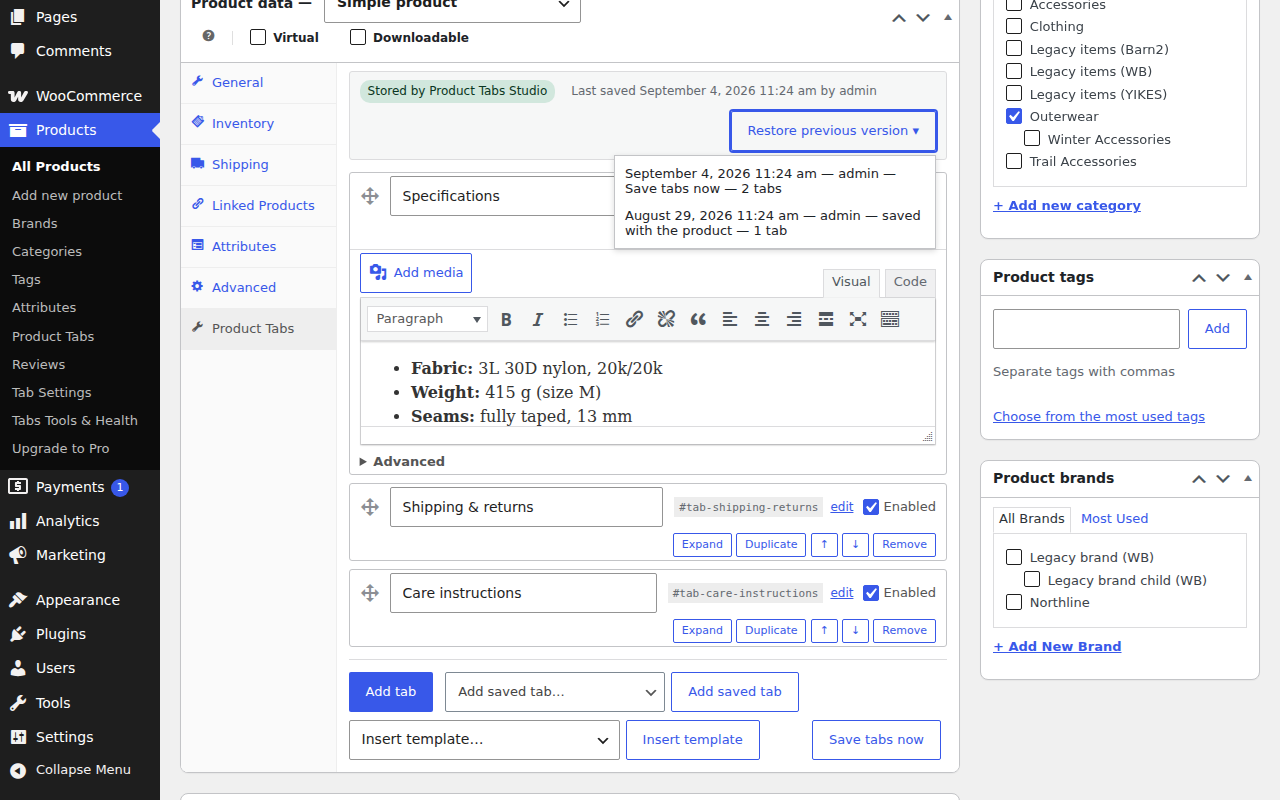
Tabs written for a single product live in the Product data box, next to General, Inventory and Shipping. They are stored with the product and are not shared with anything else.
Adding a tab
- Edit a product and open the Product Tabs panel in the Product data box. It is available for simple, variable, grouped and external products.
- Press Add tab. A new row appears with an empty title.
- Type the title. This is the label the customer sees on the tab.
- Press Expand and write the content in the editor. It is the standard WordPress editor with Visual and Code views, the media button, shortcodes and blocks.
- Update the product, or press Save tabs now to save only the tabs without saving the rest of the product.
A tab with an empty title is never shown on the storefront. The panel keeps the row so you do not lose the content you wrote.
What each row can do
- Drag handle
- Reorders the tabs. It is keyboard operable, and every row also has Move up and Move down buttons.
- Key
- Shown next to the title as
#tab-your-key. It is derived from the title, and the edit link lets you set it by hand. The key is the anchor a link can point at and the suffix WooCommerce puts on the panel's CSS class. - Enabled
- Unchecking hides the tab from the storefront without deleting it.
- Expand and Collapse
- Opens the editor for that row. One row is open at a time.
- Duplicate
- Copies the row, including its content.
- Remove
- Removes the row, with an undo prompt for ten seconds. Nothing is written until you save.
- Advanced
- A numeric priority, which overrides automatic placement, and a heading choice of inherit, show or hide for the title printed above the panel content.
Linking to a tab
Each tab has a key, so a link ending in #tab-size-guide opens the product page with that tab active. This works for custom tabs and for the WooCommerce default ones. If you would rather WordPress not intercept the anchor, turn off "hash activation" under Tab Settings → General.
Change a key only when you have to. Existing links, bookmarks and any CSS written against the old key stop matching.
Starting from a template
Insert template creates a row from the built-in library. The library covers size guides, care instructions, shipping and returns, warranty, safety information, manufacturer information for the EU General Product Safety Regulation, and the EU responsible person. Templates are ordinary starting content with placeholders in guillemets for you to replace; nothing about them is locked.
Using a global tab on this product
Add saved tab attaches an existing global tab to this product. The row shows which global tab it points at and a link to edit it. Tick Customize content for this product to replace the content here only; the global tab and every other product keep the original.
Below the rows, a read-only section lists the global tabs that already appear on this product because of their rules. Each has a button to hide it on this product, and one to customise its content here.
If a global tab is deleted while products still link to it, those rows show a "Global tab deleted" badge and offer to convert the row into a local tab using the copy of the content stored on the product.
Version history and restore
Every write to a product's tabs pushes the previous value into a history kept on that product. The default depth is five versions; you can raise it up to twenty under Tab Settings → General.
The status bar at the top of the panel shows when the tabs were last saved and by whom, and the Restore previous version menu lists the stored versions with their date, the user and the reason — saved with the product, saved from the panel, migrated, imported, or restored. Choosing one fills the rows in the panel; nothing is written until you save, so you can look before you commit.
History entries are also created by the migration and import tools, so you can always get back to the state a product was in before either of them ran.
What cannot overwrite your tabs
Tabs are written on one code path only: a full product save from the editor with the Product Tabs panel present, or the panel's own Save tabs now button. Quick edit, bulk edit, the WooCommerce CSV importer, the REST API, product duplication and the block-based product editor do not reach it, so none of them can clear the tabs.
Two further guards apply to that one path. If the panel's rows arrive incomplete — the usual cause is PHP's max_input_vars — nothing is written and you get a message explaining the setting. If a form arrives with no rows at all when the product had some, the save is refused rather than treated as "delete everything". See Troubleshooting for the message and the fix.
If someone else changed the product's tabs while you had the editor open, your save still goes through and a notice tells you it happened. The version you would have overwritten is in the history.